
Aimbot
Destiny 2 Aimbot Settings That Feel Natural
A harsh aimbot gets you killed by reports and by your own bad habits. Soft, tunable aim assistance is what most Destiny 2 players actually want — smooth FOV without looking robotic on kill cams. Here is how to think about FOV, smoothness, and weapon profiles.
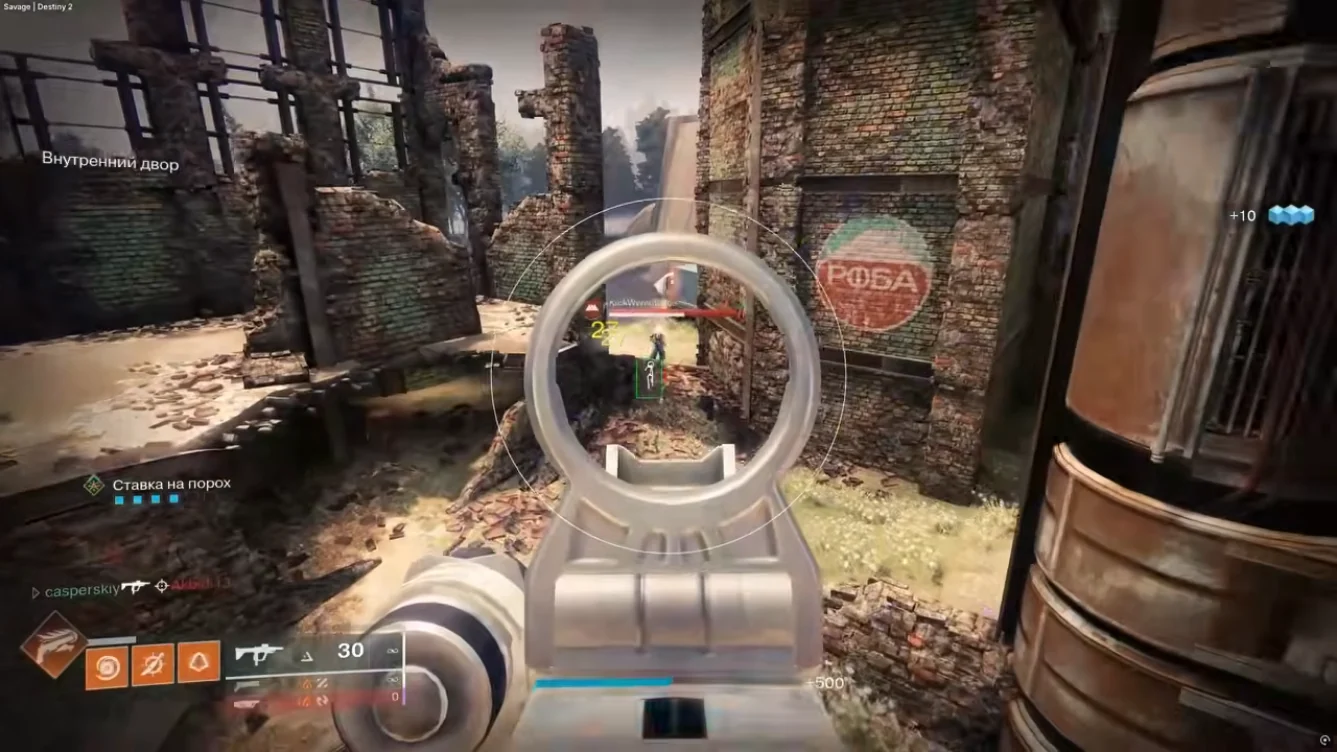
Start softer than you think you need
Begin with a smaller FOV and higher smoothness so the assist helps tracking instead of snapping. Play five Crucible or Gambit matches and only then widen FOV. If friends watching a demo say it looks robotic, you went too far.
Per-weapon profiles beat one global slider
ARs, SMGs, and bolt-actions want different assist. Save separate profiles so close-range SMG fights and long sniper lanes do not share the same magnet. Bone priority should favor what you can actually hit under stress — usually upper chest to head transitions, not miracles.
Hotkeys matter mid-raid. You need to disable assist when you are looting friendlies or holding a suspicious angle where obvious corrections would look wrong.
Pair aim settings with information tools
Soft aim finishes fights that ESP and radar help you choose. If your overlays are noisy, fix ESP categories before blaming aim. After BattlEye patches, confirm Status before you tune anything on an old build.
Related Destiny 2 cheat pages
Destiny 2 cheats covers the full ESP, radar, and soft aim stack for Windows PC. Pair this guide with Features for control details and Status before patch-day queues.
Ready to buy? Compare Pricing plans, follow Setup after delivery, and email support with your order ID if activation fails after a rebuild.